OCR Node Documentation
Overview
OCR stands for "Optical Character Recognition" and is a technique to make images of text machine readable. Very often companies still have to handle documents in a variety of formats, and scanned documents are still heavily used. This comes with the challenge that employees usually have to read the image and type data into their systems to accomplish the underlying business process. While LLMs get better at document understanding, there are cases where "traditional" OCR is still useful. Especially when a company has regulatory restrictions on using LLMs in production or if the processing is so clear and easy that you do not need to involve an LLM at all to structure the data. With our OCR node you can apply OCR to your documents as easily as possible.
Configuration
The OCR node is straightforward and has few settings:
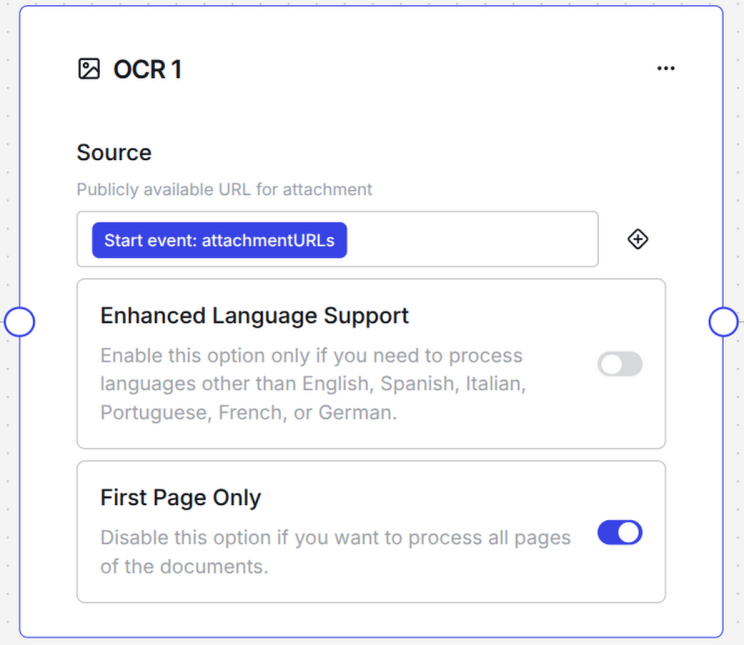
Source
The source field takes document URLs as input. It is predefined to match the Zendesk trigger format, but you can use any URL that allows a public GET request to download the document. The Start event: attachmentURLs would accept a JSON that looks like this:
{
  "attachmentURLs": ["https://my-file-to-download-1.jpg", "https://my-other-file-to-download-2.pdf"]
}
Of course you can name the key in any way you like, as long as it matches the variable name in the source field.
Enhanced Language Support
The OCR node supports English, Spanish, Italian, Portuguese, French or German right away. However, if you need to process any other language, just toggle the Enhanced Language Support to active and the node will also support non-Latin languages, like Arabic, Mandarin, Japanese and so on. If you are not sure if the language you need is supported, please reach out to our support team to get a complete list of languages. Currently we support 139 languages.
First Page Only
By default we only process the first page of a document. Very often all the information you need is on the first page, like the PO number, customer or company address fields, or the type of document. If you need to process all pages of a document, set the First Page Only toggle to inactive. This will cause the OCR engine to run on the complete document. Please avoid unnecessary processing of data, since it is not efficient and will increase processing time.
Supported File Formats
- PDF documents
- Image formats (PNG, JPG, JPEG, etc.)
- Scanned documents
- Multi-page documents
Output Format
The OCR node outputs extracted text as a string variable that can be referenced by subsequent nodes. If you process more pages and/or more documents with more pages, the output will still be one string (so one long text), which you can reference in subsequent nodes.